How to Tame a Dozen Coding Agents and Set Them Up to Work Together in Omnigent
If you've tried running Claude Code, Codex, or Cursor in the terminal, you've probably noticed one problem. Each CLI agent has its own interface, its own flags, and its own habits when modifying project files. One handles refactoring better, another writes tests more accurately, but getting them to work together on a single task without a lot of manual switching used to be a challenge.
Recently I came across the Omnigent repository. It's an open-source Python meta-framework that brings different AI agents under one roof. You get a shared orchestration layer, a unified interface, security policies, and the ability to connect to a session from a laptop or even a phone.
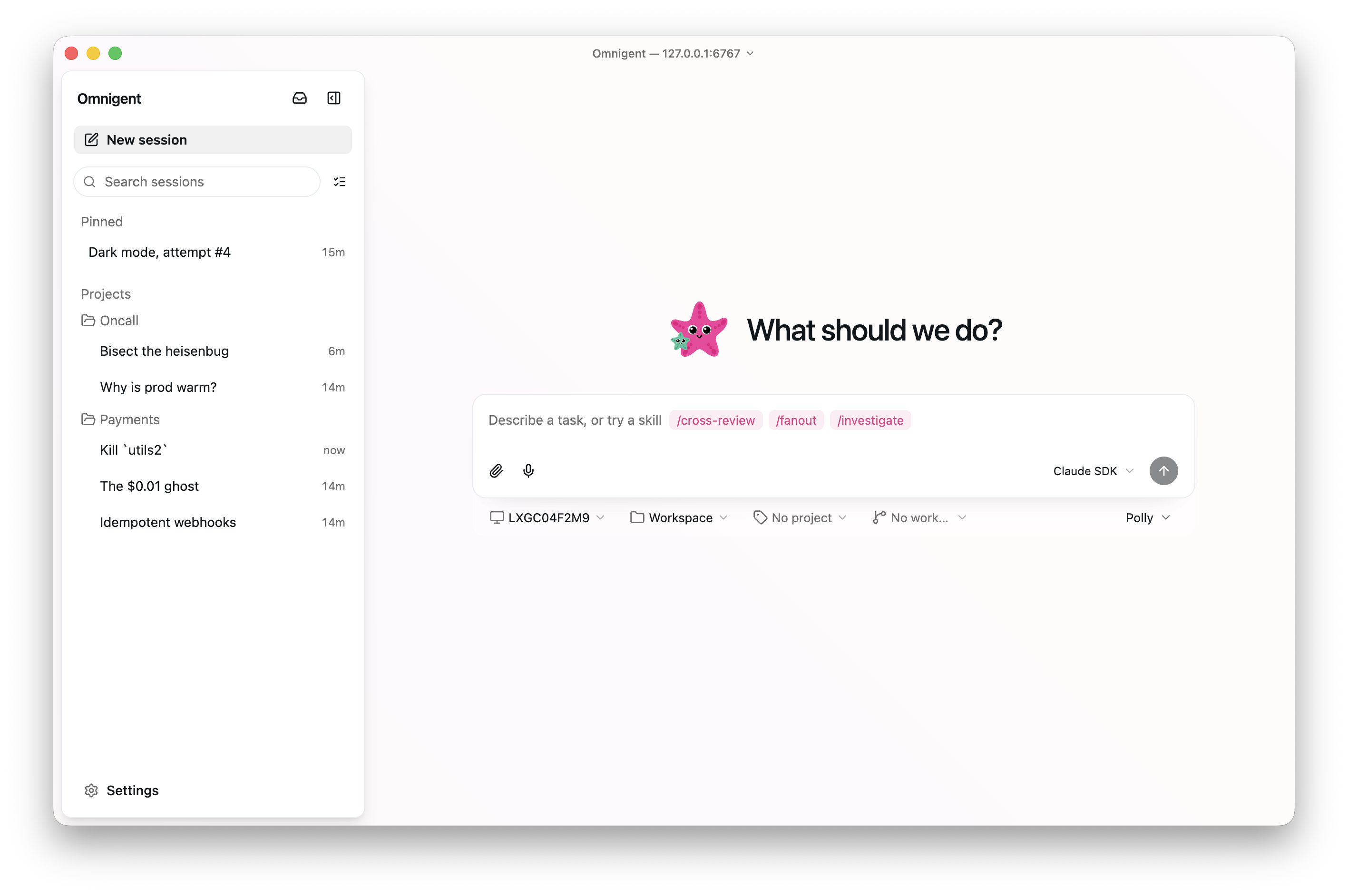
What the Meta-Framework Can Do
The core idea behind the project is to isolate developers from the specifics of particular providers and interfaces. Instead of rewriting code to work with different SDKs under the hood, you define agents declaratively and combine them into groups.
Here's what Omnigent can do in practice:
- Run multiple different agents in a single session. For example, one handles planning while others write code in parallel git branches.
- Connect any models. Anthropic or OpenAI API keys work, as do regular Claude Pro or ChatGPT subscriptions, or third-party gateways like OpenRouter, Ollama, or vLLM.
- Persist session context across devices. You can start work in the terminal, continue through the desktop app, or check the status from your phone via the web interface.
- Share sessions with colleagues. Real-time collaborative agent viewing, co-pilot mode, or forking a dialogue into a separate branch are all available.
- Isolate execution in sandboxes. Local mechanisms like bubblewrap on Linux and seatbelt on macOS are supported, along with cloud environments like Modal, E2B, Daytona, or Kubernetes.
How Launch and Configuration Work
Installation is done with a single command via the uv utility or through an installer script:
curl -fsSL https://raw.githubusercontent.com/omnigent-ai/omnigent/main/scripts/install_oss.sh | sh
After installation, the omnigent CLI utility (or short alias omni) becomes available in your system.
If you run the omnigent command, the system will offer to pull in API keys found in your environment or authorizations from previous console clients.
Next, you can start a specific environment:
omnigent claude
omnigent codex
omnigent cursor
When launched, not only a console process starts, but also a local web server on port 6767. If you navigate to http://localhost:6767, a web interface opens that mirrors the terminal output.
Declarative Agents via YAML
The most interesting part is the ability to describe your own agents and their interactions in a single config. Here's an example of a basic agent file:
name: my_agent
prompt: Вы помогаете анализировать данные и собирать отчеты.

executor:
  harness: claude-sdk

tools:
  word_count:
    type: function
    callable: mypackage.mymodule.word_count

  docs:
    type: mcp
    url: https://example.com/mcp
The repository contains several ready-made examples. The Polly example (examples/polly/) is particularly noteworthy.
Polly is a multi-agent tech lead. This agent doesn't write code itself. It decomposes a task and delegates subtasks to other agents (Claude Code, Codex, or Pi) in isolated git worktree branches. When the code is ready, Polly sends the diff for review to an agent from a different vendor. You get ready-made pull requests and cross-code review without the extra hassle.
Another example is Debby. She sends a request to two models (Claude and GPT) simultaneously and displays their responses side by side. The /debate command makes the models critique each other's decisions until they reach a consensus.
Security and Budget Limits
Giving agents full access to the terminal and file system can be dangerous. Omnigent solves this with security policies.
Policies check every agent action and can block it, or request your confirmation before executing a command. Moreover, rules can be set at the server level, per individual agent, or for the current session:
policies:
  approve_shell:
    type: function
    handler: omnigent.policies.builtins.safety.ask_on_os_tools
  budget:
    type: function
    handler: omnigent.policies.builtins.cost.cost_budget
    factory_params:
      max_cost_usd: 5.00
      ask_thresholds_usd: [3.00]
In this example, the agent will request confirmation before executing shell commands and will stop when the limit of 5 dollars is reached.
Who the Project Is For
Omnigent is a good fit for teams that actively experiment with AI agents in daily development. If you lack control over expenses, want to run agents in cloud sandboxes, or need a convenient way to share sessions with colleagues, this project will cover those needs.
The project is in alpha stage, but already has 8.7k stars on GitHub and an active community. To get started, just install the CLI and run one of the ready-made examples.
Related projects